
For independent technicians
Keep task discovery, diagnostic evidence and supported actions in one working environment. Review what an operation does before using it on a computer entrusted to you.
A focused Windows servicing workspace
Find the right task, inspect the computer and make supported changes with clear risks and separate result verification.

For the computer in front of you
Technician connects a task catalogue, current-PC information, diagnostics and supported configuration tools. It is built for considered Windows servicing, not a single button that claims to fix every problem.
Keep task discovery, diagnostic evidence and supported actions in one working environment. Review what an operation does before using it on a computer entrusted to you.
Investigate reported symptoms, check the machine and choose a relevant action. Distinguish what was attempted from what the evidence actually confirms.
Search by the task or symptom rather than starting again with an unrelated list of commands. Dedicated views help you return to diagnostics, registry tasks and repair tools.
Use separate execution and verification results to explain what happened. Record remaining issues, reboot requirements and manual follow-up rather than calling every attempt a successful repair.

Start with evidence
Inspect connectivity, reported storage health, startup entries, drivers, reliability history and battery information with supported read-only checks.
Use the evidence to choose your next step. A missing result or an unsupported check is not proof that the computer is healthy.
A deliberate route through the job
Keep discovery, execution and confirmation distinct. The available operation and the actual Windows computer determine which steps and permissions apply.
Search by task, symptom or alias, then narrow by category. Open the action details to see what it is intended to investigate or change.
Check compatibility, prerequisites, risk and potential disruption. Read whether Administrator permission, a restart or manual follow-up will be needed.
Review the available plan before applying a change. A plan explains intended work; it is not a report that the computer has already been changed.
Execute the supported action only when its requirements are met. An incompatible PC, declined permission or unavailable runner is reported, not disguised as success.
Check the separate verification state. It can be verified, partial, failed or indeterminate, or require a reboot or manual confirmation.
Use supported undo only where the action offers it. Keep unresolved issues and further work explicit, with suitable backups before changes.
A practical servicing toolkit
Browse one connected catalogue through the specialist view that fits the work. Action details help you make a considered choice instead of hiding meaningful Windows changes.
Find catalogue entries by task, symptom, category or alias. Narrow the results with category chips instead of remembering the Windows mechanism behind each action.
Bring current device details into the same workspace as diagnostics and supported actions. Check the machine you are actually working on, rather than assuming a saved record is current.
Inspect connectivity, reported storage health, startup entries, installed drivers, reliability history and battery information using the supported checks. Hardware and Windows support determine the evidence returned.
Open its details and review its purpose, risk, compatibility, prerequisites and expected disruption. A catalogue entry is not a promise that it can run on every computer.
Use the available plan to inspect the intended operation before execution. Planning is separate from applying a change, and permission or prerequisite failures are shown rather than treated as success.
Find supported registry actions in a dedicated view. Review the specific change and its requirements, with Administrator permission where needed and restoration only when supported.
A command finishing is not the same as confirming the intended result. See verification separately, including partial, failed, indeterminate or manual-confirmation outcomes.
See when an action requires a reboot or other disruption before verification can finish. Keep that requirement visible rather than assuming the job is complete immediately.
Supported reversal or captured-state restoration is identified for the action. Other changes have no automatic rollback, so review this before proceeding and keep suitable backups.
Local computer work and optional Technician Cloud records are separate. Persistent client records, service history and saved device facts require the applicable Cloud entitlement.
Scale without guesswork
The catalogue brings registry, diagnostic, repair, configuration, security and workflow entries into a searchable library. These are catalogue entries, not a guarantee of 1,187 automatic fixes.
Look for the problem or task using text search, including supported aliases and symptom terms. Category chips let you narrow the scope without first knowing a command name.
Tech Utilities brings the catalogue together. Registry, Diagnostics, Repair Tools, Scripts & Packages and Workflows provide focused views over the relevant work.
Action details describe purpose, risk, compatibility and requirements. Understand the intended result before treating a promising name as the right answer for this PC.
Some entries provide information or require manual work. Automatic execution depends on an available supported runner, compatibility, permissions and prerequisites.

Informed changes
A command can finish without proving that the intended result was achieved. Technician shows execution and verification separately, including manual or reboot requirements.
Review rollback before a change. Supported undo is useful, but some actions have no automatic reversal.
Local work and optional records
The local Technician core does not require Technician Cloud for supported execution. Persistent client, service and device records use a separate entitlement and should not be assumed from a free account.
The local Technician core is free for approved, active Technician accounts. Your account approval and the Windows action requirements still apply.
Technician Cloud access governs saved client records, service history and persisted device facts. It is separate from local execution and is not automatically included with account registration.
Where entitled device history is used, a possible hardware match requires confirmation. A detected computer is not silently assigned to a client or treated as proof of ownership.
Use your Technician account for application, approval and entitlement information. This page does not offer a Cloud subscription price or an instant Cloud checkout.
Professional judgement remains essential
Use the action details and evidence to decide whether a task is appropriate. A clear result is more useful than an unsupported success claim.
Actions have their own version, architecture and prerequisite requirements. A catalogue listing does not mean every task works on every Windows PC.
Some changes require Administrator rights. Review the operation and the permission request, and do not bypass the computer owner’s authority.
Some operations have no automatic rollback. Keep appropriate backups and recovery arrangements before changing a client’s computer.
Reported storage health and diagnostic evidence do not guarantee that a device will remain healthy. Technician does not promise that every problem can be repaired.

Use your existing VISINVOKE account. Technician has a manual application and approval process, not an unrelated second account.
Open Technician through Desktop Command Centre on Windows. A separate Technician installer or sign-in is not required.
Review risk, requirements and separate results. The local core helps you perform supported work without buying optional Cloud records.
Service operations, file conversion, backups and managed protection have their own product pages. They are not bundled promises of Technician access or capability.
Build your working collection
Each card opens that product’s own website. Review its purpose and access separately, without assuming automatic data synchronisation or inclusion in Technician.

Open supported Windows products through one VISINVOKE account and a connected desktop collection.

Explore the separate service-operations product and how it supports your business workflow.

Copy named folder projects to storage you choose, with exclusions and run reports.
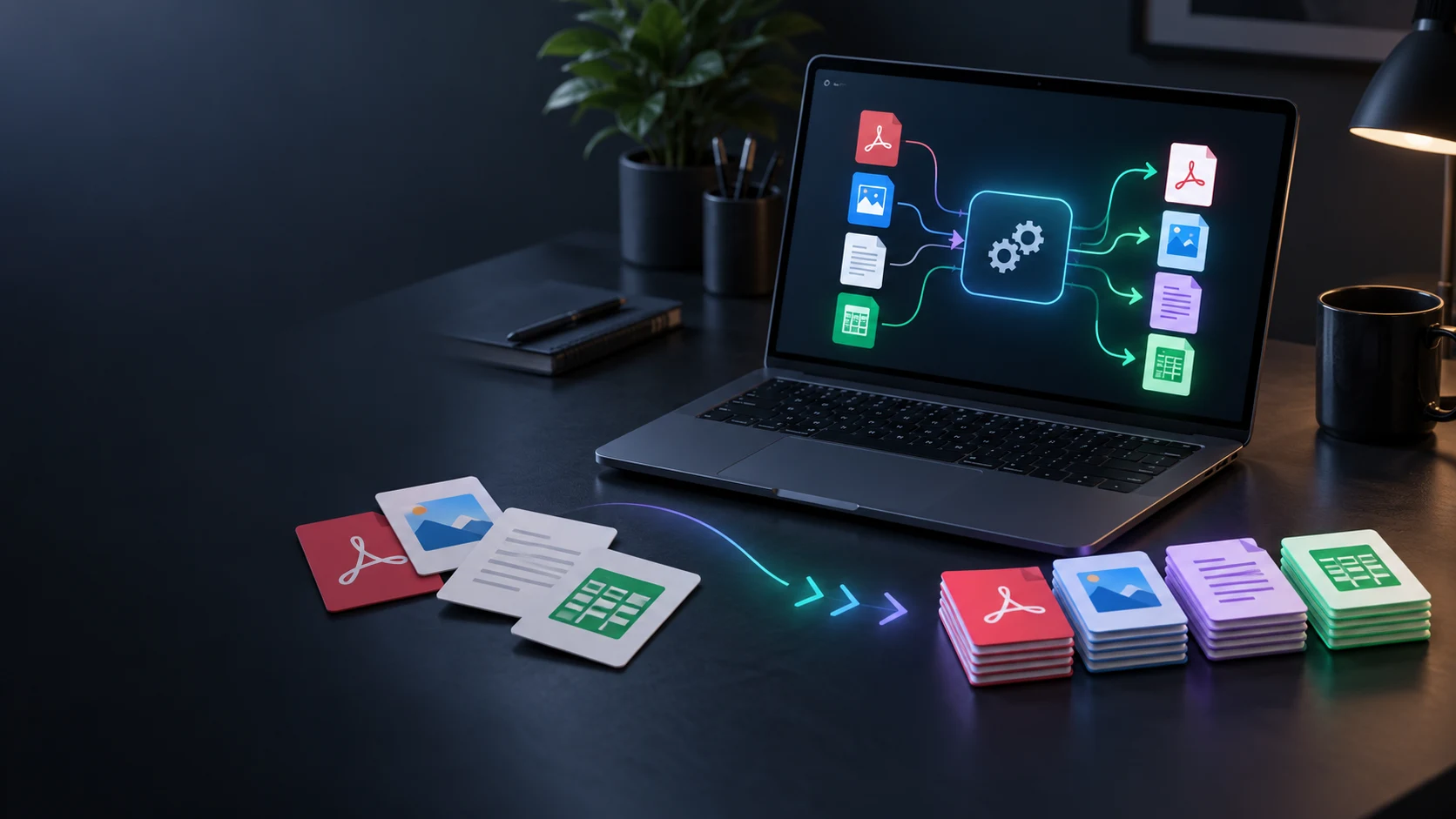
Identify local files and choose compatible output formats for the next part of your work.

Prepare existing pictures with local resize, crop, conversion and output controls.

Explore the separate continuing Windows protection service, with monitoring and email support.
Product artwork illustrates capabilities, not application screens or actual customer records.
Quick answers
Understand what is required before opening Technician or making a change to a Windows computer.
Create a VISINVOKE account and submit the Technician application from your account. VISINVOKE reviews applications manually. An account or Desktop Command Centre installation does not automatically grant Technician access.
Technician opens through Desktop Command Centre on Windows and uses your existing VISINVOKE identity. Get Desktop Command Centre from your account installer page, then sign in with an approved, active Technician account.
The local Technician core is free for approved, active Technician accounts. Optional Technician Cloud records are separate and depend on their own entitlement. This page does not offer a Cloud subscription price or an instant Cloud checkout.
No. The catalogue contains 1,187 entries, not 1,187 guaranteed automatic fixes. The individual action, available runner, Windows compatibility, permissions and prerequisites determine what can run. Some work requires manual steps.
No. Execution and verification are separate results. Verification may fail, be partial or indeterminate, require a reboot or need manual confirmation. Technician does not promise that every reported problem can be fixed.
No. The action shows whether supported reversal or captured-state restoration is available. Some actions have no automatic rollback. Review the risks and keep appropriate backups before changing a computer.
Continue in VISINVOKE
Create a free VISINVOKE account first, then submit your Technician application for manual review.
Get Desktop Command Centre from your account installer page. Sign in on Windows with approved, active Technician access.